Auto Approve
If enabled, auto-approval rules allow specific Access Groups to be configured for automatic approval (i.e. no approval from an ACR or other user is required). Auto-approval rules are intended to be used for lower security areas that don’t require approval, but are not assigned to Identities automatically. Specific use cases include:
Areas that are not high-risk, but are not typically assigned to most users.
Areas that are auto-assigned by an Access Group rule to local users, but are not assigned to users from a different region.
If an Identity requires access to this area, they simply need to place an access request and the group will be assigned to them automatically. For more information on access requests, please review IDM Identities section of the guide.
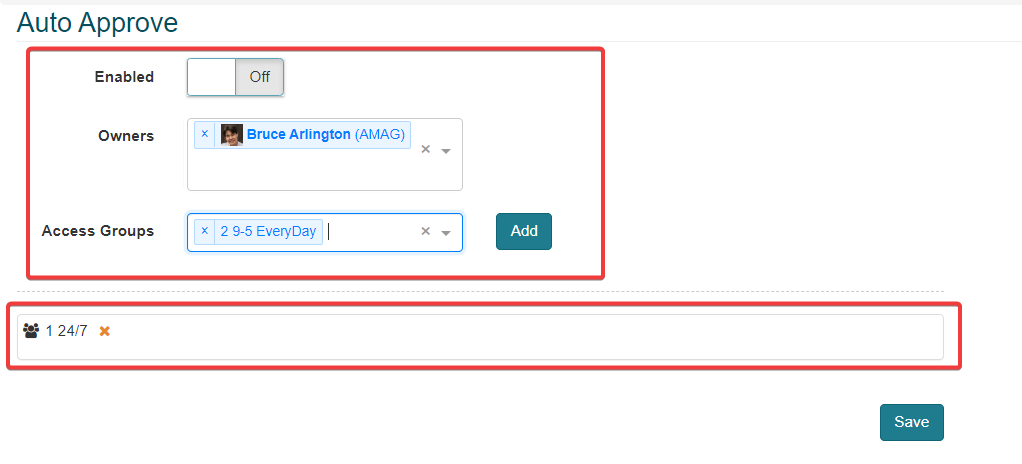
Select On to enable Auto Approve.
Select an Owner/Owners of the Auto Approve rule. Single or multiple identities can be selected.
Select an Access Group and click the Add button to apply the Access Groups to the rule. Multiple Access Groups can be applied.
Click the Save button to apply and save the Auto approve rule.
The image below shows an auto-approval rule configured in CONNECT.
Note
Multiple Access Groups can be assigned to the auto-approval rule.