Notifications
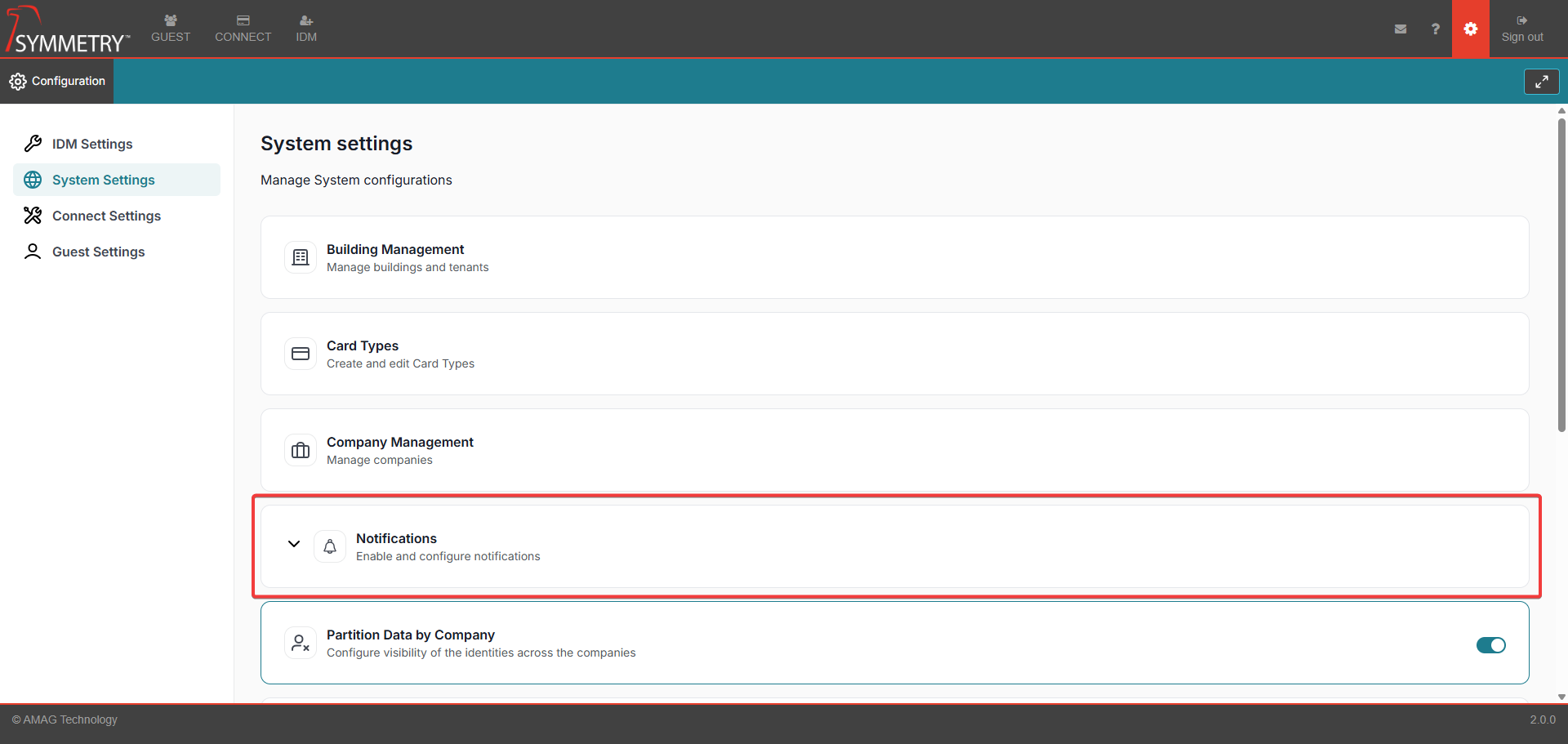
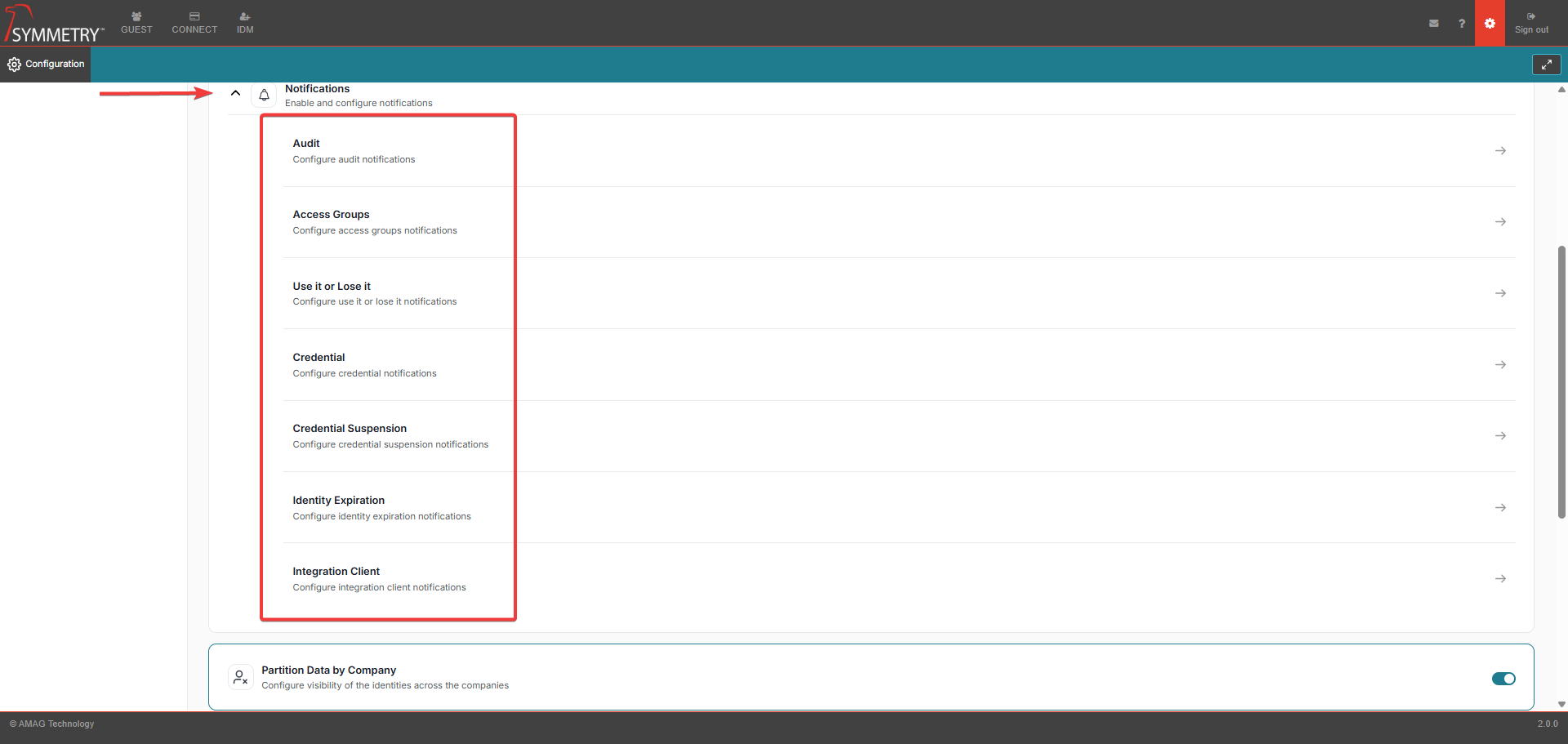
The System Settings Notifications configuration allows the user to control the behaviour of the notifications which are created by the system. The following options are available:
Audit
Access Groups
Use it or Lose it
Credential
Credential Suspension
Identity Expiration
Integration Client
Note
If a Building has been made Inactive it will not be visible and therefore unable to be selected in any of the following sections. Refer to Building Management for further information.
Audit
Note
Audit section only available if Configuration > Audit set to ON)
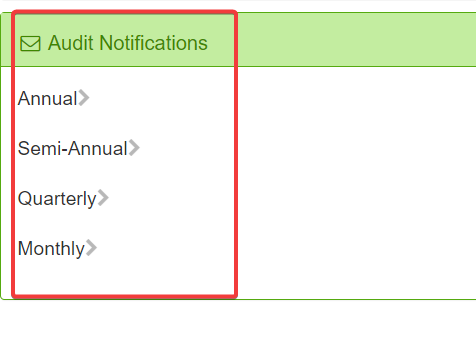
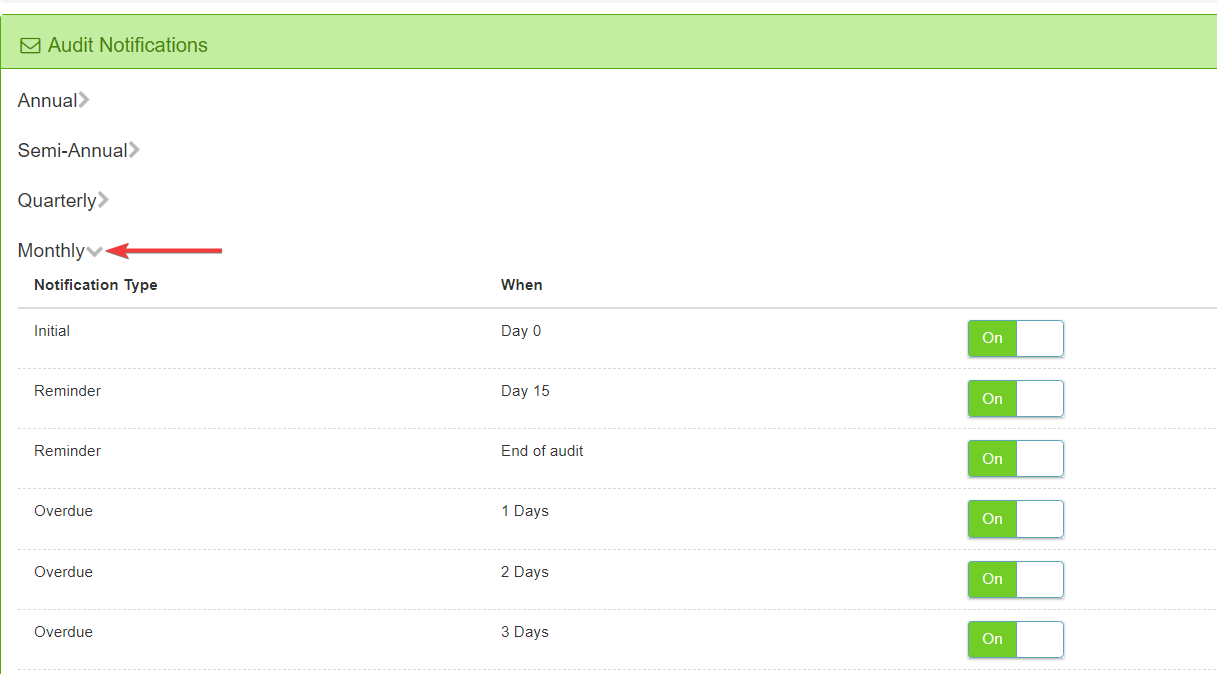
Audit notifications allow the user to configure when email notifications are sent before, during and after a scheduled audit. The system can send an email notification at the start of the audit, then send a reminder half-way through the audit (Day 15) and a final reminder at the end of the audit. If configured, the system will send overdue reminder emails every day for up to 15 days.
Set each notification to On in order to have the system send an email at that stage of the audit process (all options default to On).
Access Groups
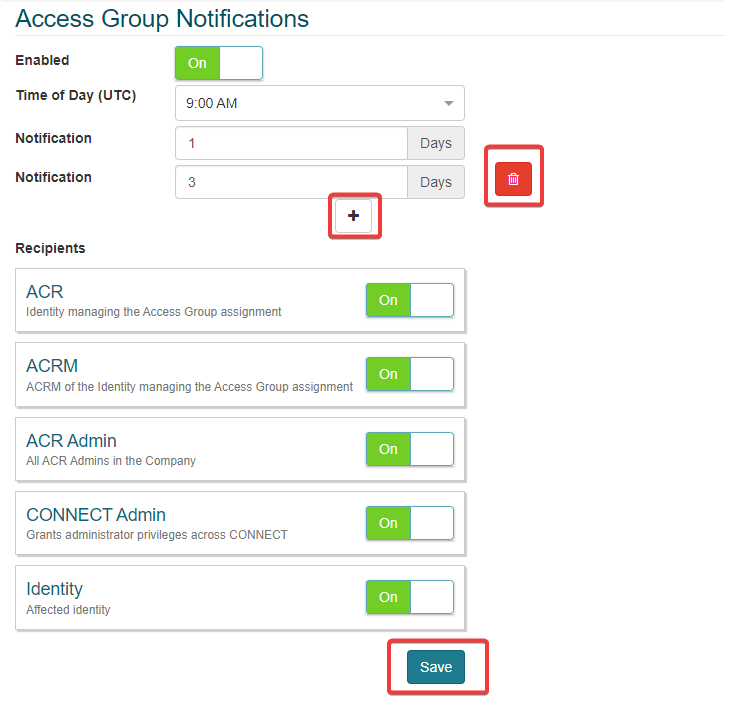
Enabling Access Group Notifications will allow the system to send an email notification at a specified time (in UTC) when a specific access group assigned to an Identity is about to expire. The notification can be sent to the ACR and/or ACRM managing the Access Group assignment, all ACR Admins in the Company, all CONNECT Admins in the Company and/or the affected identity.
Set each notification to On in order to have the users in the specific user role receive the email notification.
It is possible to send out multiple notifications by clicking the + icon. For example a notification can be sent out 10 days in advance of an expiration, and 1 day prior to expiration.
Use it or Lose it
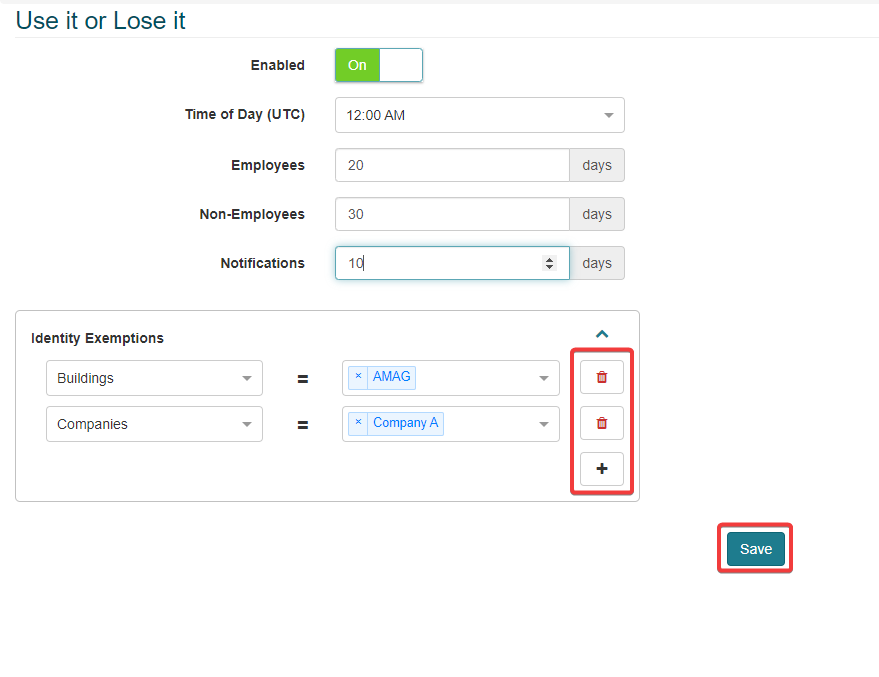
Enabling the Use It or Lose It function allows a notification to be sent out at a specified time (in UTC) when specific access groups assigned to a Identity may expire as they meet the conditions of the Use it or Lose It rule.
If set to On, an administrator is able to specify the number of inactive days before the specific Access Group expires for both Employees and Non-Employees.
The administrator is able to set the number of days in advance of an expiration that an email Notification is sent out.
The administrator is able to configure Identity Exemptions. This allows the administrator to specify specific attributes that would exempt identities from having the rule apply to them based on one or more Buildings, one or more Companies, a Department, one or more Employee Types and/or a Identity Category.
Credential
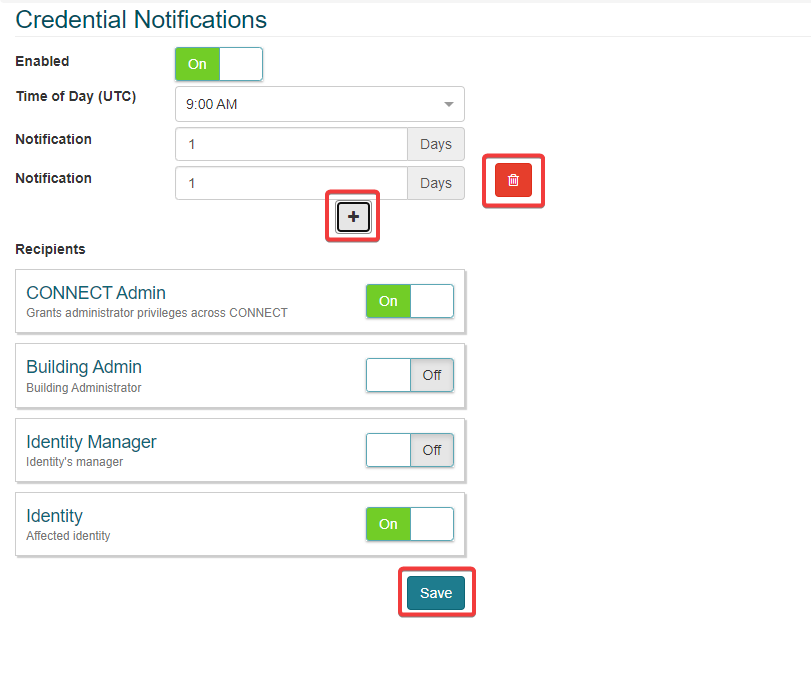
Enabling Credential Notifications will allow the system to send an email notification at a specified time (in UTC) when a specific access card (Credential) assigned to an Identity is about to expire. The notification can be sent to the Identity themselves, their Manager (and Delegate, if applicable), Building Managers (role configured on the IDM tab of the application) and CONNECT administrators.
Set each notification to On in order to have the users in the specific user role receive the email notification.
It is possible to send out multiple notifications by clicking the + icon. For example a notification can be sent out 10 days in advance of an expiration, and 1 day prior to expiration.
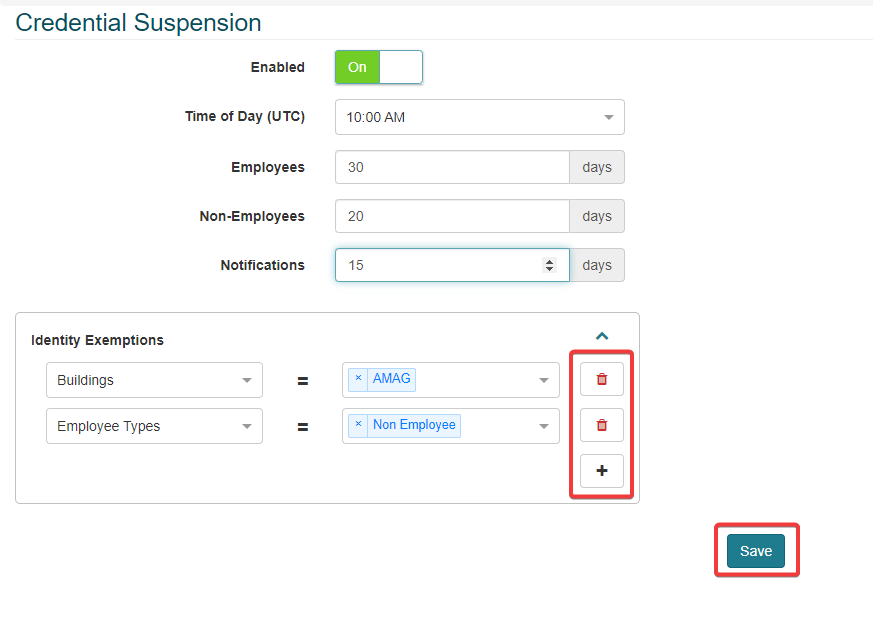
Credential Suspension
Enabling the Credential Suspension notification will allow a notification to be sent out at a specified time (in UTC) when specific credentials assigned to a Identity may expire as they meet the conditions of the Credential Suspension rule.
If set to On, an administrator is able to specify the number of inactive days before the Credential expires for both Employees and Non-Employees
The administrator is able to set the number of days in advance of an expiration that an email notification is sent out.
The administrator is able to configure Identity Exemptions. This allows the administrator to specify specific attributes that would exempt identities from having the rule apply to them based on one or more Buildings, one or more Companies, a Department, one or more Employee Types and/or a Identity Category.
Identity Expiration
This section allows the user to configure identity expiration notifications.
If enabled, notifications can be sent to specific users when an identity record is nearing expiration. The following settings are available:
Enabled: Enable or disable the notification for identity expiration.
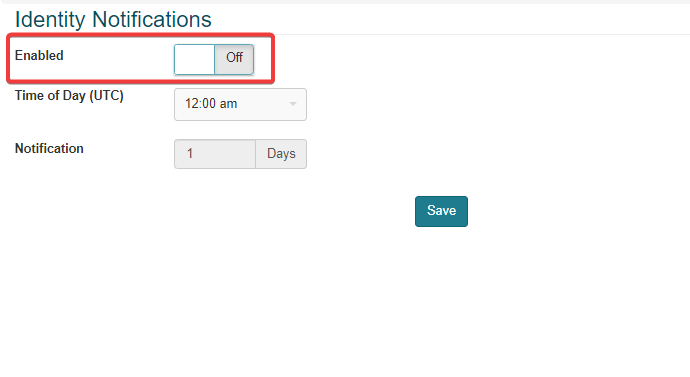
Time of the day: Enter the time of the day the notifications need to be sent out.
Note
This is UTC (Universal Time Coordinated) time.
Notification (1-9 Days): Program the number of days in advance the notifications need to be sent out. Click the + symbol to add additional notifications. For example, a notification could be sent out 8 days prior to expiration, a second notification could be sent out 5 days prior, and a final notification could be sent out the day before expiration.
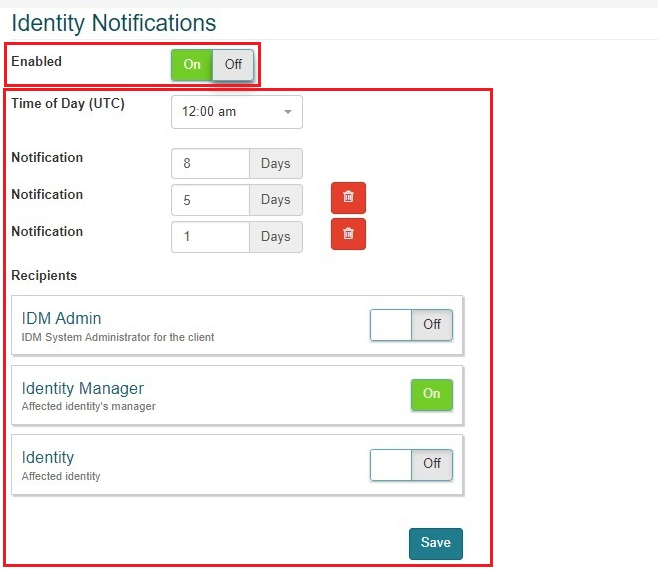
Recipients: Select the user role of the recipients who will receive the notification. Notifications are automatically sent to Identity’s manager (and delegate, if configured) and can also be sent to the identity that is about to expire and any IDM system administrators.
Click the Save button to save the notification settings.
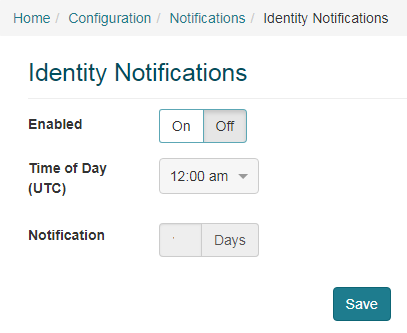
If the identity notifications are disabled, the user will see the screen below. The fields are only editable if the identity notifications are enabled.
Integration Client Notifications
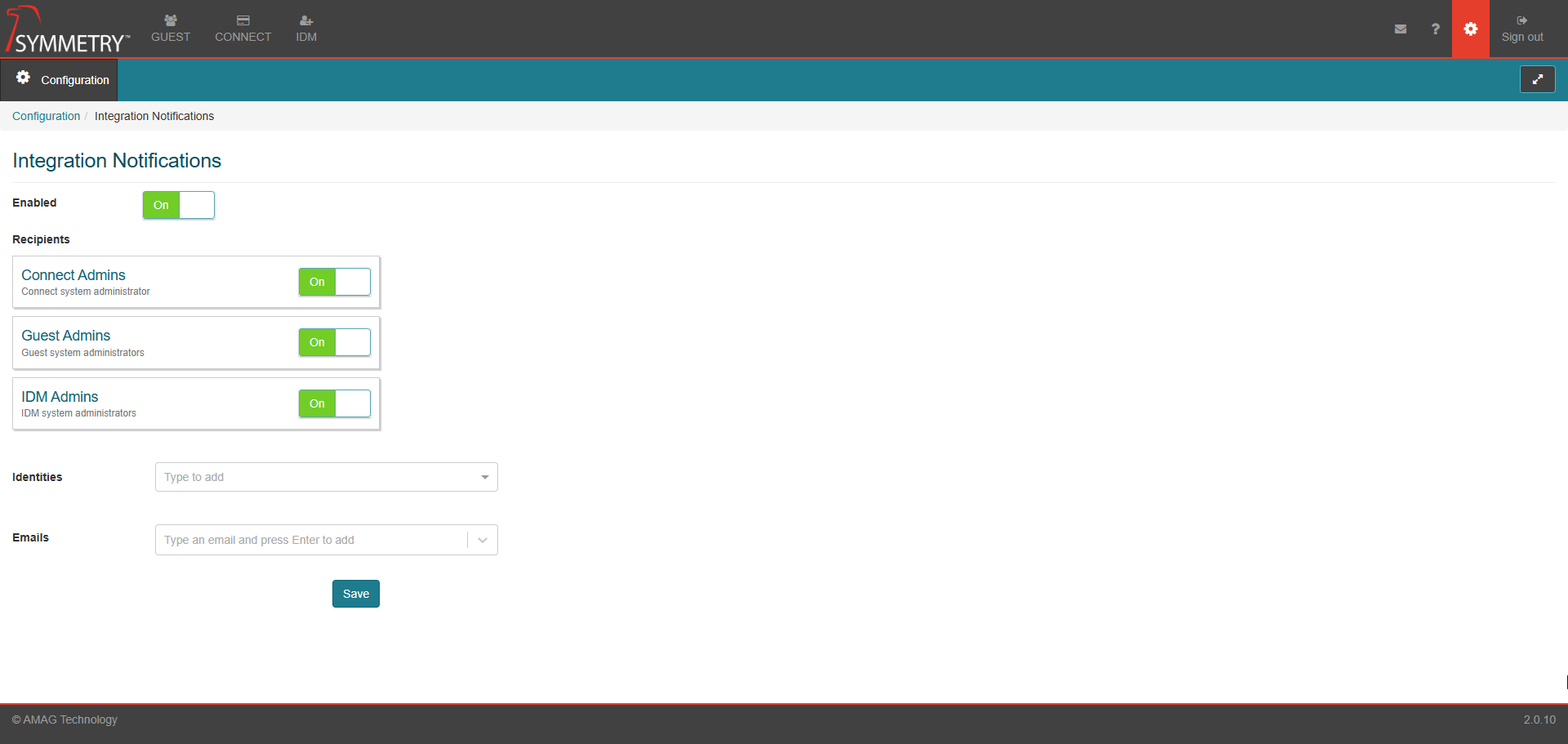
This section allows users to configure who receives notifications when the integration client status changes.
If enabled, notifications can be sent to specific users when an Integration Client status changes. For example, the Integration Client loses or regains connection. The following settings are available:
Enabled: Enable or disable the notification for Integration Client status changes.
Recipients: Toggle between On or Off to select if the following recipients receive the notification:
Connect Admins
Guest Admins
IDM Admins
Identities: Type to search for specific identities within the system that are required to receive the notification.
Emails: Type to search for specific email addresses within the system that are required to receive the notification.
Click Save to save and apply the notification settings.