Access Group Rules
Access Group Rules allow the Administrator to configure parameters to determine whether or not a user should be able to have a specific Access Group added, should be able to request a specific Access Group or should be able to approve a request for a specific Access Group.
Selecting Access Group Rules will display a list of existing rules to the user (if existing rules have been created). The user is able to edit/delete the existing rules if required.
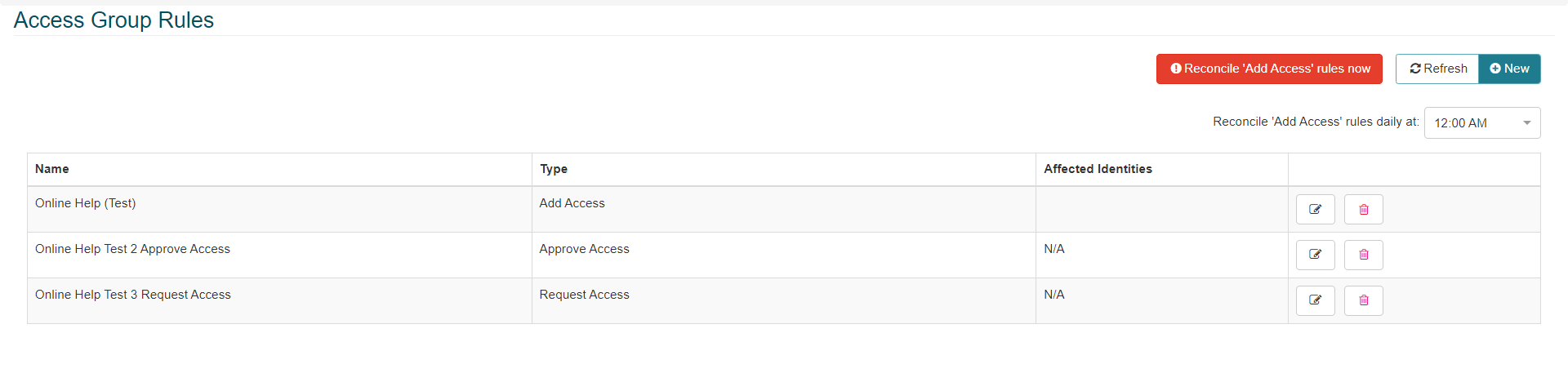
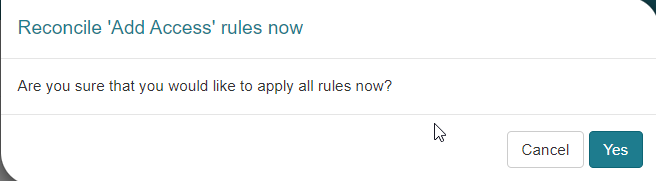
Clicking the Reconcile 'Add Access' rules now button will cause the system to review all existing identities and make sure they have the correct Access Groups assigned to them per the rules configuration of the system. The user will be asked to confirm to Reconcile 'Add Access' rules now by clicking the Yes button when prompted.
Note
There is an automated process that automatically reconciles all Add Access rules daily at the time configured in the system (in this example, the system has been configured to reconcile at midnight).
Click the New button to create a new rule.
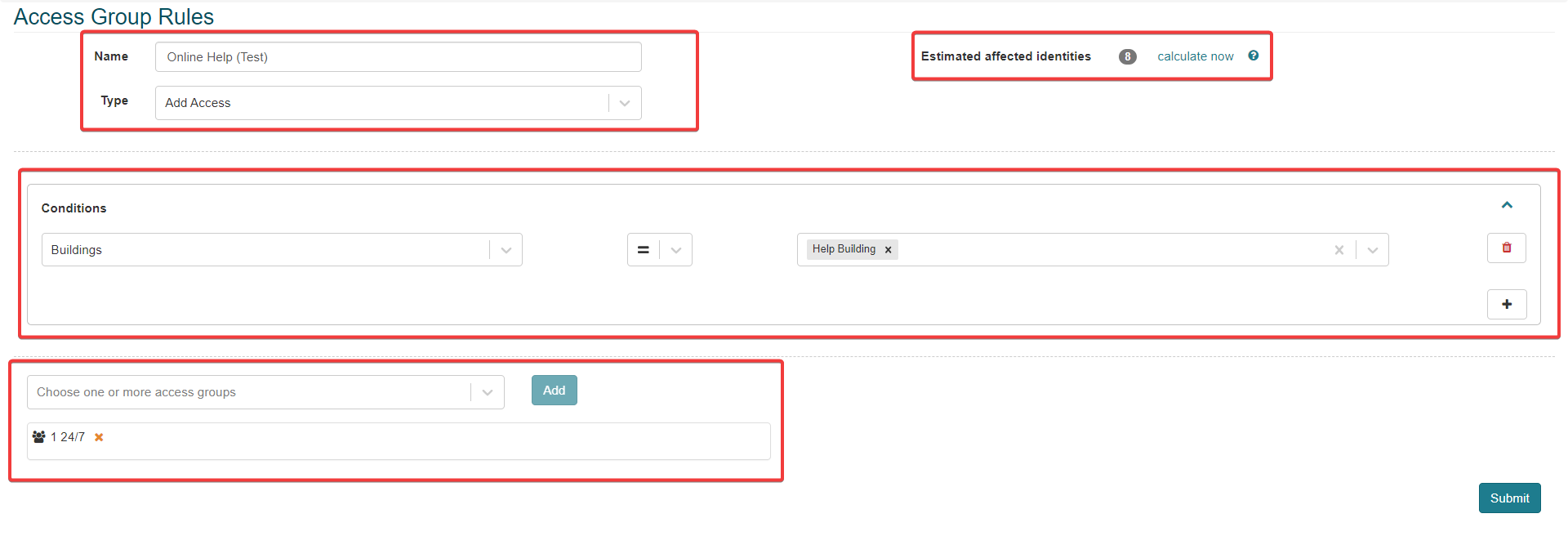
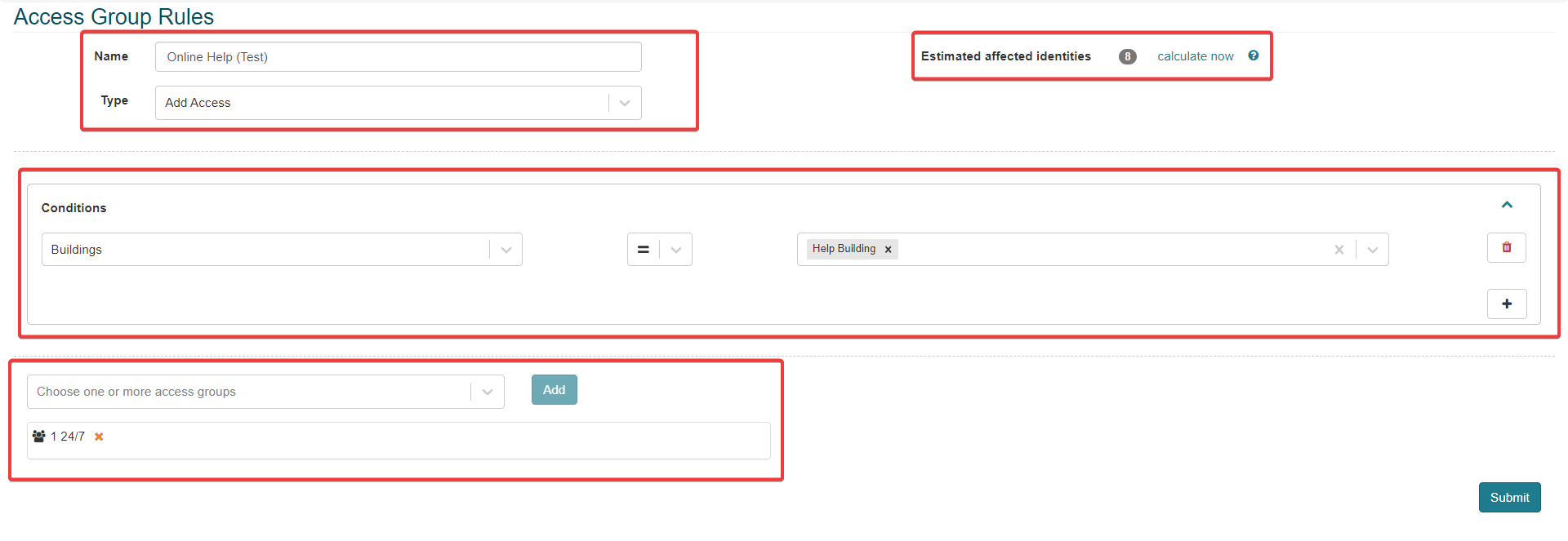
Select a Name.
Select a Type from the drop-down box:
Add Access
Request Access
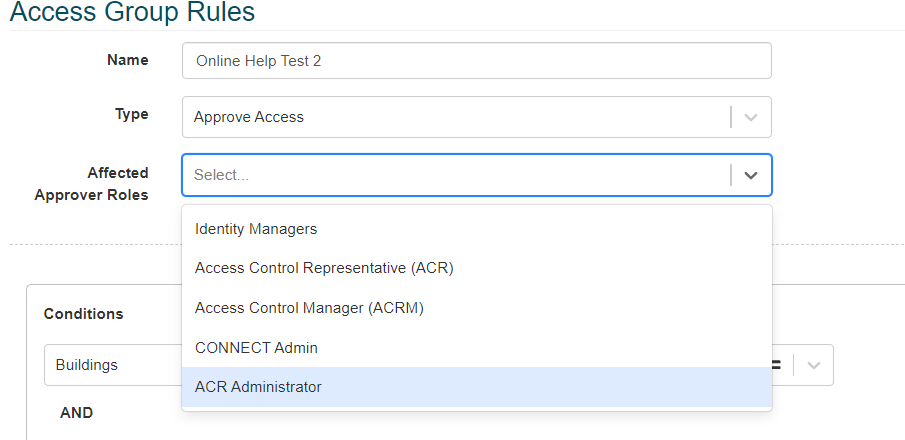
Approve Access (If this is selected, then the user is required to select an Affected Approver Roles. As described below.
Select one or more options from the Affected Approver Roles drop-down list:
Identity Managers
Access Control Representative (ACR)
Access Control Manager (ACRM)
CONNECT Admin
ACR Administrator
Remove Access
Functions similarly to other Access Rule types; however, Access removal Rules are restricted to OR conditions only.
The Access Remove rule is executed passively and is not subject to immediate reconciliation as per the other rule types.
The Access Remove rule will always execute 1 hour after the 'Reconcile Access rules daily at' component. This prevents any conflicts with other rules reconciling at the specified time.
Configure one or more Access Conditions for the rule. Clicking the Add icon button will allow multiple Access Conditions to be added (following the AND condition rule), each condition must also have Equal to or Not equal to selected as required. Clicking the Delete icon button will delete the Access Condition it is associated with.
Note
All fields on the CONNECT Identities screen that have not been configured to Hide in IDM Screen Configuration (including User Defined Fields) will be available for selection in the Access Conditions list. The administrator can also select one or more Access Groups as Access Conditions if desired.
Note
Certain field types (e.g. Dates, Times, Numbers) will have, in addition to Equal To or Not Equal To, selectable parameters for Greater Than, Equal To or Greater Than, Less Than and Equal To or Less Than .
Note
Access conditions determine which Identities apply to the rule. For example, the image below shows Access Conditions for the "AMAG" and the "Help" Building and “24/7” Access Groups. Any Identity assigned to these specific Buildings and Access Groups will be assigned to this rule.

If Date or New Date is selected as an Access Condition, the user can select the desired date from the calendar function or select the Use current date tick box.

Select one or more Access Groups. Any Identities that are assigned to this rule, will have these Access Groups assigned to them automatically by the system. Click the Add button to apply the Access Group to the rule.

Note
To see more about Access Groups auto-assigned to Identities please review the Assigning an Access Group section of this guide.
Once all fields are completed, Click the Submit button to save and apply the Access Group rule.
Note
when creating a Add Access Rule, the field Estimated affected identities will appear and user can click 'calculate now' link to confirm the number on completion of the Rule.