Card Types
Note
Required fields are indicated with a red Asterisk.
The IDM card type configuration allows the user to add card types and configure the settings for the selected card type.
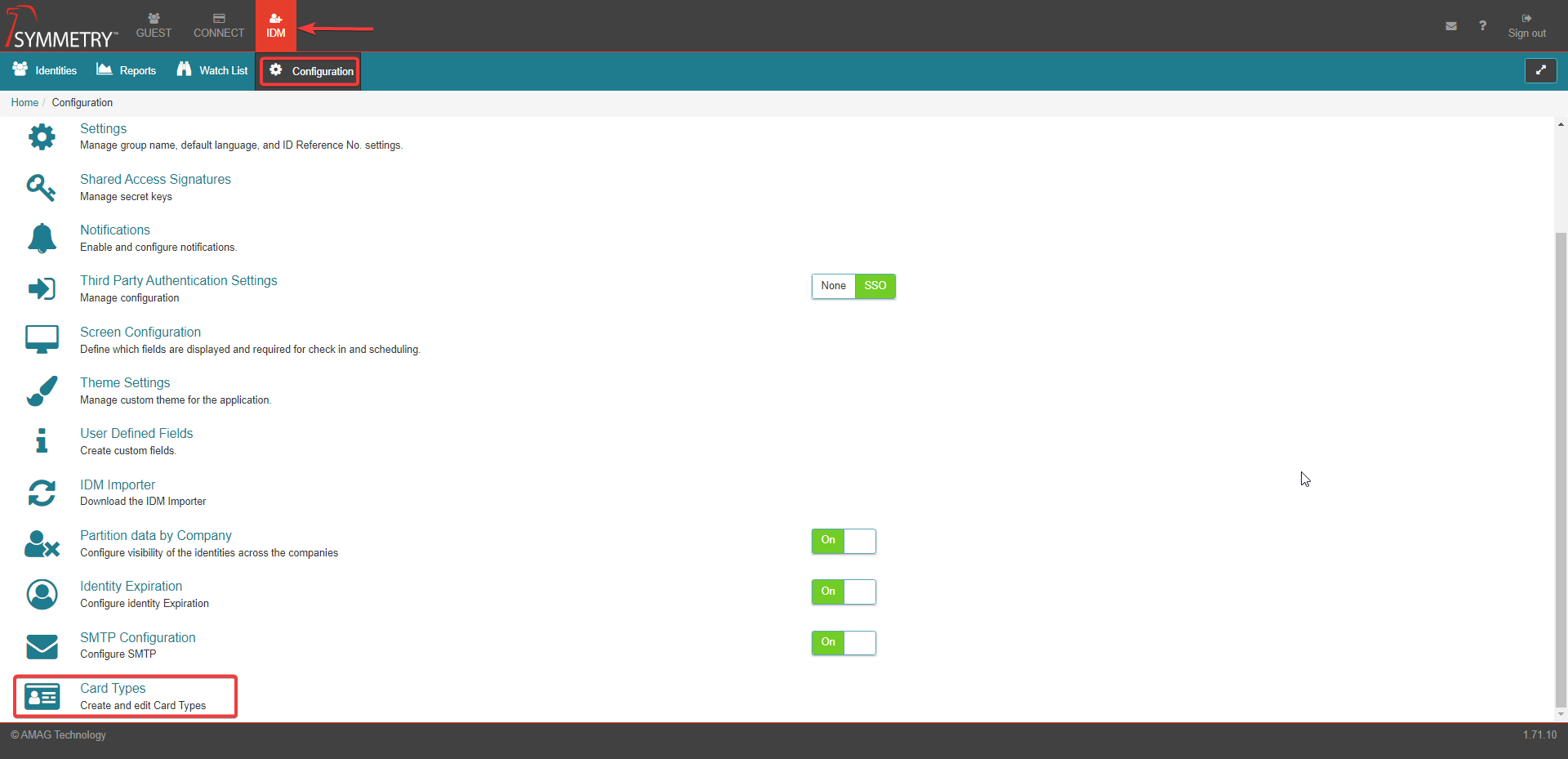
New Card Type
Click the New button to create a new card type.
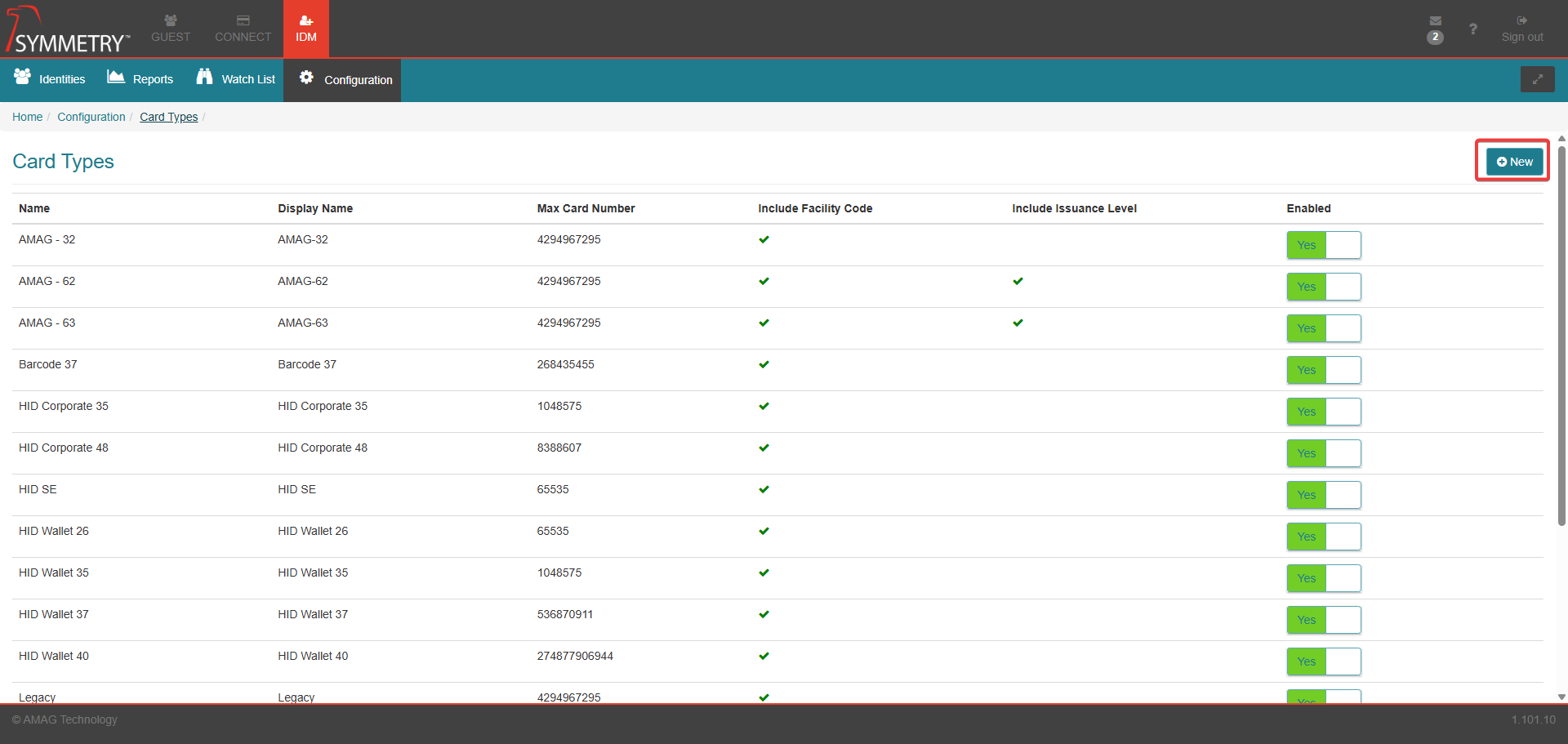
Insert the card type into the Name field.
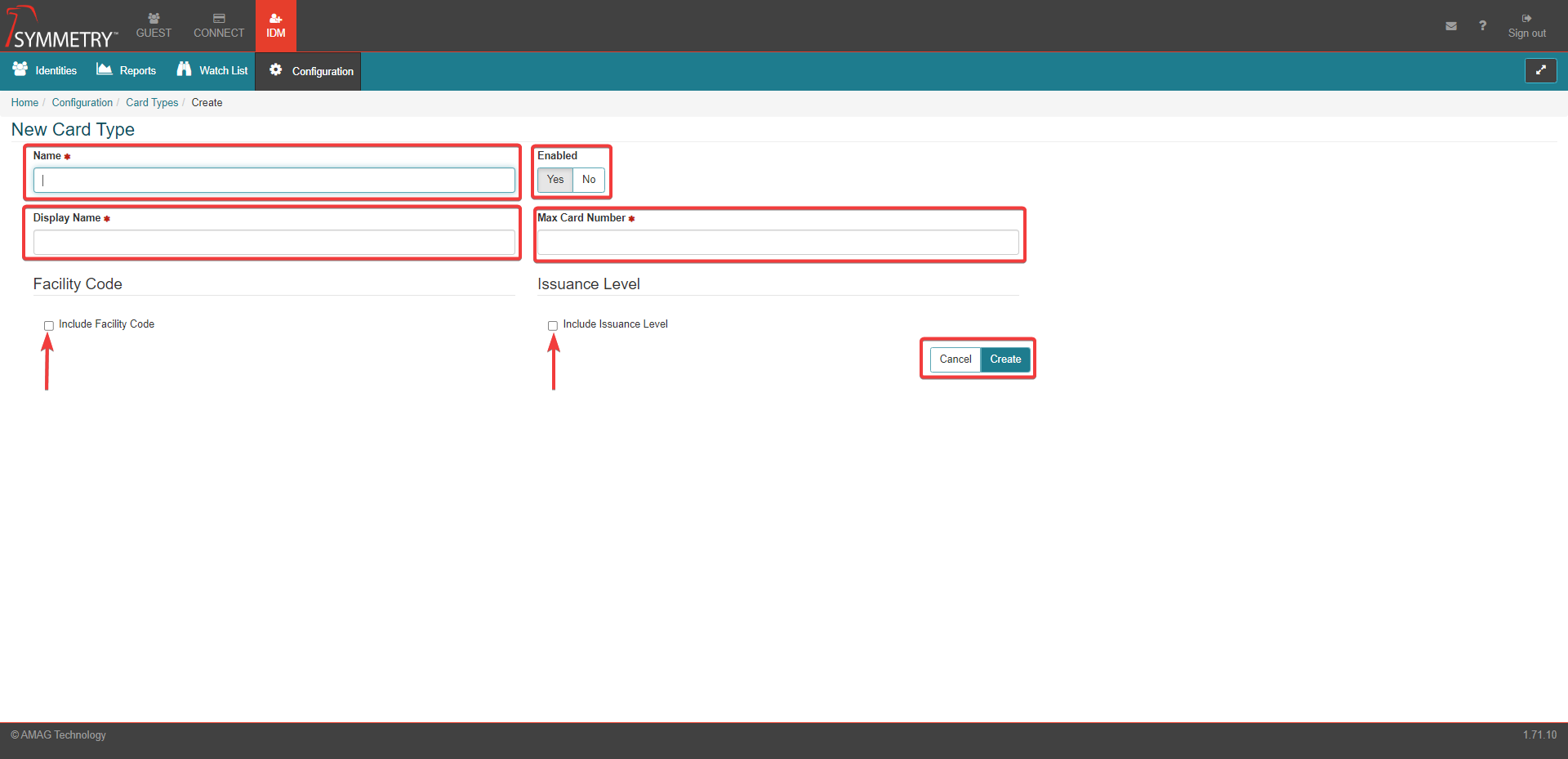
Insert the display name into the Display Name field.
Insert the largest allowable Card Number, according to the configuration applied in CONNECT for the specific Card Type you are adding, in the Max Card Number field. This number can be inserted via free text or by the up and down arrow within the text box.
The card type can be Enabled (Yes/No) by selecting the toggle switch to the preferred position.
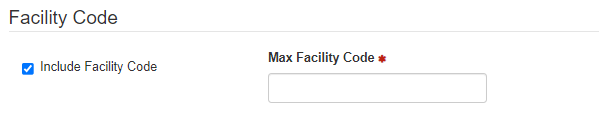
The option to select Include Facility Code. If this option is selected, the following information is displayed.
Insert the maximum Facility code (Max Facility Code) into the available field. This number can be inserted via free text or by the up and down arrow within the text box.
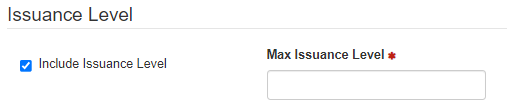
The option to select Include Issuance Level. If this option is selected, the following information is displayed.
Insert the maximum issuance level (Max Issuance Level) into the available field. This number can be inserted via free text or by the up and down arrow within the text box.
Click Create to save and apply the options, Or click Cancel to clear and delete any options or edits made.
Disable a Card Type
The user can disable card types from the main screen by toggling between Yes or No to confirm if the card is enabled or not.
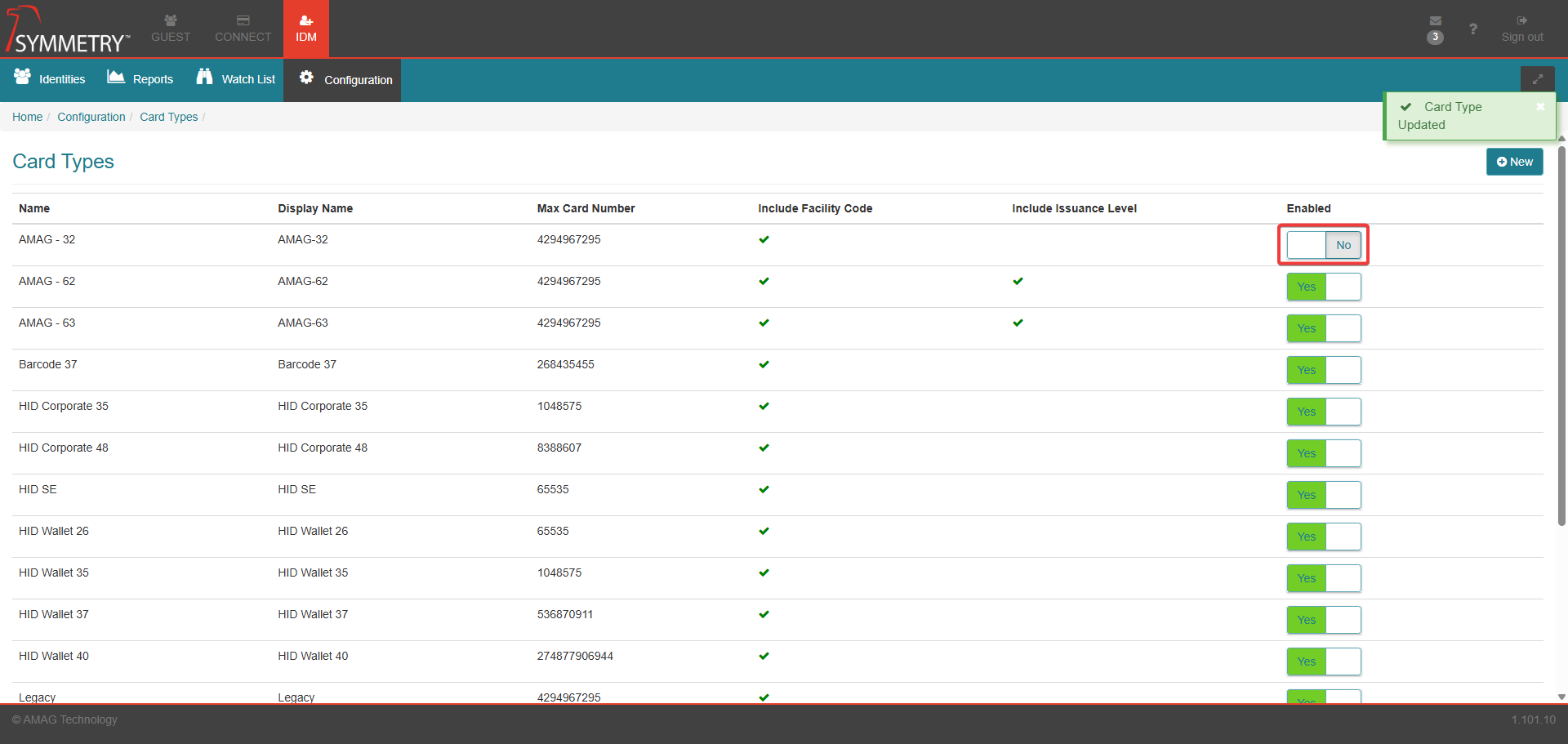
Once a Card Type is disabled, the following sections will no longer allow a Credential to be viewed or assigned:
CONNECT → Identities → Identity Info → Add Credential → Type
CONNECT → Configuration → Credential Management → Card Type
CONNECT → Requests → Manage Credential/Badge Requests
CONNECT → Configuration → Access Control → Edit Integration → Default Card Type
CONNECT → Configuration → Credential → Disabled Cards cannot be uploaded as a credential range
CONNECT → Uploads → A Disabled Card cannot be assigned via the credential upload function
GUEST → Access Control Configuration → Default Card Type
GUEST → Access Control Configuration → Rule → Credential Card Type
Once a Card Type is disabled but already assigned to an Identity or Rule, the function of the card will not be affected, but will be marked in the color RED:
CONNECT → Configuration → Credential → Credential Ranges list
CONNECT → Identity Information → Credentials
CONNECT → Configuration → Access Control → Edit Integration → Default Card Type
GUEST → Access Control Configuration → Default Card Type
GUEST → Access Control Configuration → Rule → Credential Card Type
CONNECT - Process Credential Request
Identity must have two credentials
Credentials must have an expiration date
The badge must display the expiration date
Symmetry Imports of disabled Card Types via Onboarding or Credential polling will not be affected, but will be marked in the color RED.